
Introduction: When the PC starts to lag
Do you know this? You’re working focused on an Excel spreadsheet, have a few browser tabs open, maybe Outlook is running in the background, and suddenly the computer becomes sluggish. The mouse pointer stutters, programs take a long time to load, and the fan gets louder.
In many cases, the cause is not the processor but the RAM. Systems with 8GB RAM quickly reach their limits when multitasking.
The good news is that upgrading RAM from 8 to 16GB is one of the most effective and affordable ways to give a slow PC more power.
In some cases, it may even be advisable to add even more RAM to achieve a significant performance boost. We’ll show you how to find out if your device’s RAM can be expanded, how much memory you need, and how much your system supports.
What happens when there is too little RAM?
Before we get into practice, a quick look behind the scenes. RAM (Random Access Memory) serves as your computer’s short-term memory. All currently used programs and data are temporarily stored here so the processor can access them quickly.
If the RAM is insufficient, Windows uses the so-called page file, an area on the hard drive that acts as emergency memory. The problem: even modern SSDs are many times slower than RAM. The result is noticeable delays when switching programs, longer loading times, and an overall sluggish experience.
Why is it worth upgrading RAM?
A larger RAM ensures smoother performance. Programs start faster, multitasking runs more smoothly, browser tabs remain more stable, and loading times are reduced. Games or resource-intensive software such as image or video editing, virtualization, or 3D simulations benefit significantly from a performance boost with more RAM.
Systems with only 8GB or less gain especially in performance when upgraded to 16GB or 32GB. If there is too little RAM, the system constantly relies on the slower hard drive or SSD. The result: stuttering, long loading times, and sluggish programs.
It is important to note that RAM does not automatically increase CPU or graphics performance. However, it removes bottlenecks and allows the existing hardware to reach its full potential.
The following table shows the minimum recommended RAM sizes for different use cases.
| Use Case | Recommended RAM Size | Expected Performance Gain |
| Office / Everyday | 8 -> 16GB | +20 - 40% in multitasking |
| Gaming | 16 -> 32GB | Shorter load times, more stable FPS |
| Video / Image Editing | 16 -> 64GB | Significantly faster rendering |
| Virtualization / 3D | 32 -> 128GB | Massive performance boost |
How can I find out if I can upgrade my RAM?
Many users are unsure and ask themselves: Can I even upgrade my RAM? Which modules are compatible? What should I pay attention to, and can I install the memory myself without damaging my device?
The first step is to find out which RAM is currently installed and how many slots are occupied.
Determine the RAM modules suitable for your system
Method 1: The RAM module online search on phs-memory.com
On phs-memory.com you will find a well-maintained database of compatible RAM modules. Currently, more than 400,000 compatible RAM modules for almost all manufacturers and devices are listed.
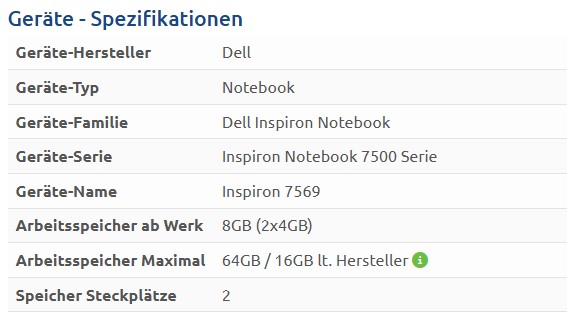
Simply enter the name of your device in the search field on the homepage, e.g., Dell Inspiron 7569.


Simply click on the desired RAM size.
Note: If items are displayed here, you can assume that you can replace or upgrade the RAM. All shown RAM modules are guaranteed to be compatible with your device.
On the following page, you will see all information about your device on the right.
RAM Installed: The memory configuration with which the device was shipped.
Maximum RAM: The maximum memory size your device can be upgraded to. In many cases, the maximum possible RAM is higher than the manufacturer specifies. These RAM modules are marked with the overRAMing Project logo.
Memory Slots: Shows the number of RAM slots available in the device.
Method 2: RAMONA – The RAM online analysis from phs-memory.com
Don’t know the model name of your device or unsure? No problem!
Our RAMONA analysis program scans your system and finds the suitable RAM in seconds. Simply download RAMONA, run it, and purchase the compatible memory.
- Download RAMONA for free here
- Start RAMONA-de.exe with a double-click
- Confirm security warnings, if necessary click on “More info” and then “Run anyway”
- Display the compatible RAM
- If the search was unsuccessful, you can easily send your memory request to one of our RAM experts
- You will then receive a message with a link to the compatible RAM modules for your system
Method 3: Manual check in the operating system
This method only tells you which RAM is installed in your system.
Windows operating system:
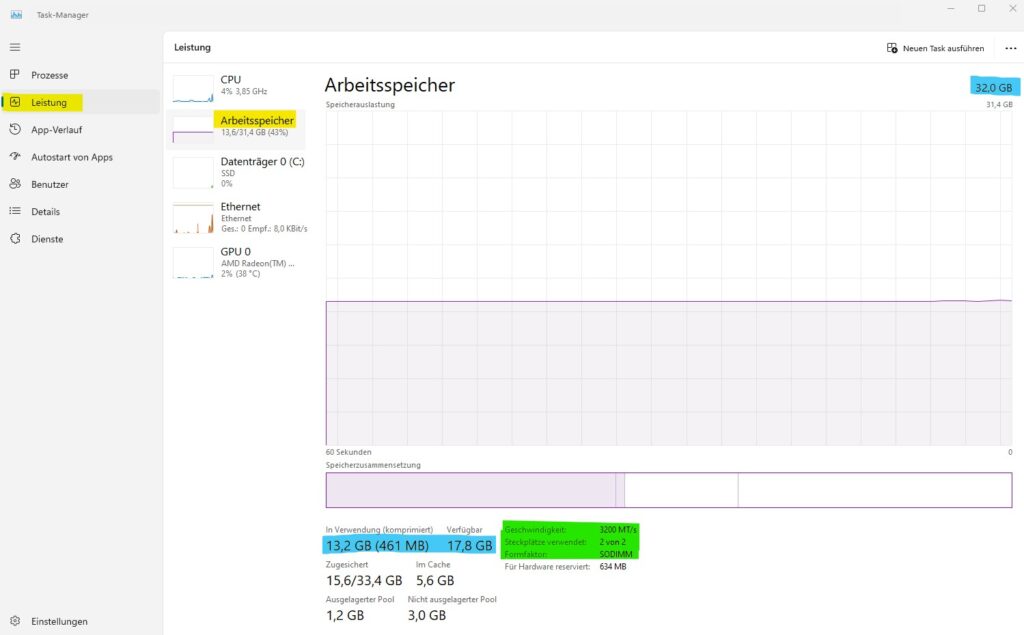
Open the Task Manager by pressing [Ctrl] + [Alt] + [Del] simultaneously.
Navigate to Performance and then to Memory.
macOS operating system:
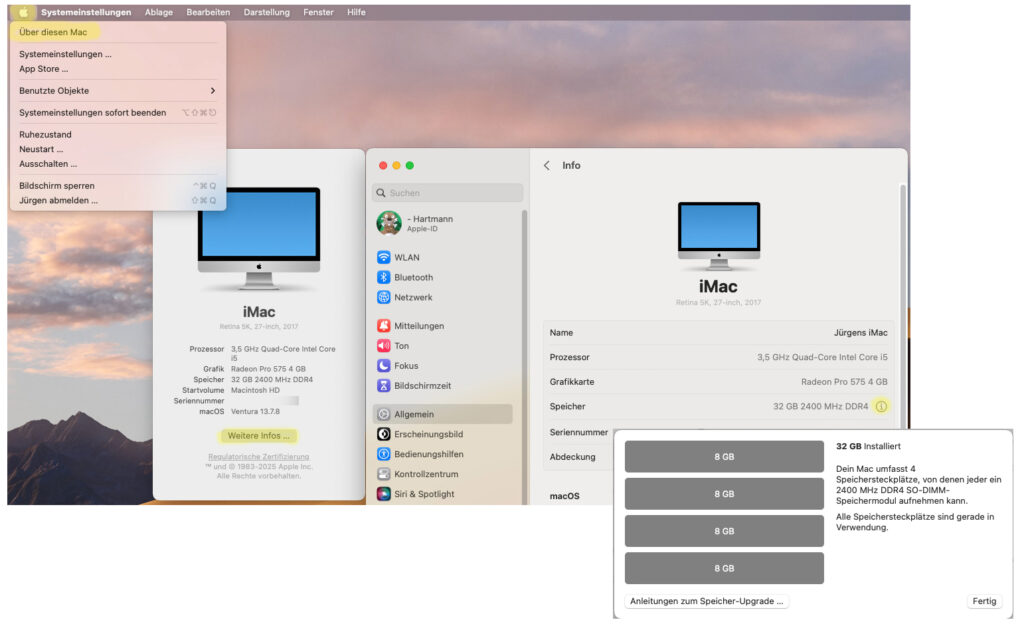
Apple menu -> About This Mac -> More Info… -> Memory -> 
What does RAM upgradeability depend on?
Whether you can upgrade your RAM primarily depends on the motherboard in combination with the installed CPU. Both determine:
- Which RAM generation is supported (DDR3, DDR4, DDR5)
- Which RAM speeds are possible
- How the modules should be installed
- The maximum total RAM capacity
Note: phs-memory.com has already done this work for you. All RAM modules displayed on phs-memory.com for a manufacturer’s device have been checked and approved by the RAM experts at phs-memory.com. This minimizes the risk of purchasing incompatible or incorrect modules.
How to correctly install RAM
Familiarize yourself with the tips and the straightforward installation of your newly purchased RAM at phs-memory.com.
Here you can find the steps for SO-DIMM.
Here you can find the steps for UDIMM.
When should you upgrade?
Upgrade now if:
- You regularly use 8+ tabs + Office + chat simultaneously
- You notice that your computer becomes extremely slow or stutters during multitasking
- Your notebook is 3–5 years old but still otherwise fast
- You plan to use the system for another 3–5 years
- Your RAM is already over 70% utilized
Expected performance boost from more RAM: 20–35% noticeable improvement
FAQ: Frequently Asked Questions About Performance Boost with More RAM
Can I mix different RAM brands?
Basically, yes, as long as the DDR generation, voltage, and form factor match. However, for the best stability and dual-channel performance, identical modules are recommended. A kit with two sticks is the safest choice.
Can I mix DDR3 and DDR4 RAM?
No, that is not possible. The memory modules are incompatible. DDR4 RAM does not fit into a DDR3 slot. The connector pins, dimensions, and memory sockets are different. You must always upgrade using modules of the same memory type.
My laptop has only one RAM slot – what now?
In this case, you need to replace the existing module with a larger one.
Which is faster, DDR4 at 2400 MHz or 3200 MHz?
DDR4-3200 is faster. In memory-intensive applications, the speed of the RAM becomes noticeably more important.
What happens if RAM that is too fast is installed?
This is not a problem. The installed processor controls the operating speed of the RAM modules. For example, if a 3200 MHz module is installed, the CPU automatically reduces the memory clock to the speed supported by the CPU, e.g., 2666 MHz.
Can modules with different clock speeds be mixed?
In this case, the CPU will always adjust the RAM clock speed so that all modules run at the speed of the slowest module.
Can too much RAM be harmful?
No, having too much RAM has no negative effects. The unused RAM remains available in the system.
Are there devices in which the RAM is not replaceable?
Yes, many Apple MacBooks and modern ultrabooks (especially from 2020 onwards) have soldered RAM. In these devices, the memory is soldered onto the motherboard and cannot be upgraded or replaced. These devices do not have a memory slot.
Search for your model on phs-memory.com. If no result is shown for your device, it is very likely not upgradeable!
Does installing RAM void my laptop’s warranty?
No. The statutory warranty is not affected and remains valid.
Will my system automatically become faster after a RAM upgrade?
Not necessarily. A noticeable performance boost can be expected if the existing RAM is already being used at around 70% by the system or active programs. In this case, installing more RAM is recommended and leads to a significant increase in performance.
Do I need to reinstall Windows after a RAM upgrade?
No, not at all. Replacing or installing an additional RAM module does not require reinstalling the operating system. Windows automatically detects the new capacity and will use the added RAM.
How long does RAM last?
Under normal use, practically unlimited (20+ years without issues). RAM is one of the most reliable PC components. Failures or defective RAM modules are extremely rare.
Is it better to buy two 8 GB modules or one 16 GB module?
Two 8 GB modules are often better. Using two identical RAM modules activates dual-channel mode. This can provide an approximate 5–10% performance increase in communication between the CPU and RAM, and it reduces the load on the memory controller.
With current CPUs, when modules of different sizes are installed, the memory controller may use flex-channel mode instead of dual-channel mode. In this case, the speed gain compared to dual-channel mode is smaller and significantly reduced.
More about this in the blog article Dual-Channel / Flex-Channel.
Can I damage my device when installing a RAM module?
No, damage from installing RAM is unlikely if you follow these steps:
- Disconnect the device from power
- For notebooks, remove the battery or, if this is not possible, unplug the battery connector from the motherboard
- Use compatible RAM for installation
- Do not apply force
RAM modules are passive components and do not have a power supply. They are designed so that a defective or incorrect module cannot cause damage. If the computer does not boot after installation, simply reinstall the old module. The system will work again.
Do I need to delete data from the RAM?
No, RAM is a temporary hardware component. This means that as soon as the power is cut off, all information in the RAM is automatically erased.
Is the RAM automatically recognized after installation?
In most cases, the RAM is automatically recognized. If not, check that the module is properly seated in the slot and perform a BIOS update.
How can I tell if my system uses DDR3, DDR4, or DDR5?
Go to phs-memory.com and enter your model number in the search bar. All compatible memory modules will be listed, and the RAM generation (DDR3, DDR4, DDR5) will also be displayed.
Alternatively, you can check in your operating system as described here.
Conclusion: RAM Upgrade – One of the Most Worthwhile Investments for Your PC
If you regularly work with multiple programs at the same time, upgrading your RAM is one of the most worthwhile investments. You’ll experience noticeably smoother performance, shorter wait times, and more headroom for the future.
The performance boost from additional RAM may not sound as spectacular on paper as a new processor, but in everyday use, it is far more effective, environmentally friendly, and cost-efficient. The result: fewer stutters, faster program switching, and an overall more responsive PC. These are improvements you notice every day.
Take just a few minutes to check on phs-memory.com whether your device can be upgraded. After installing additional RAM, you will benefit from a more powerful device. In many cases, this allows you to avoid a new purchase and save money.
Why You Can Buy Safely at phs-memory.com
When you buy from phs-memory.com, you avoid:
- Reading outdated manufacturer datasheets.
- Incorrect information about maximum RAM capacity.
- Searching for the right memory configurations.
- Guessing which memory technology fits your device (DDR3, DDR4, DDR5).
- Determining the correct RAM speed for your processor.
- Relying on false forum posts or pseudo-expert guesses.
When purchasing RAM from phs-memory.com, you benefit from:
- Verified approvals: Listed modules are tested and approved by our experts for your specific device.
- No risk: If the RAM does not fit, you get your money back.
- Help and support before and after purchase.
- Personal support: If a search is unsuccessful, just send us a request. Our memory experts will assist you personally and promptly.
Ready for a performance boost with more RAM? Find the right RAM for your system in just a few clicks on phs-memory.com!